Showing posts with label software. Show all posts

Monday, 10 June 2013

Create a Simple Java REST Web Service Client

A web service is a method of communication between two electronic devices over the World Wide Web.  [Wikipedia]

Unlike some private protocol, RESTful web service use common web protocol and encapsulate data into XML format.

For example, client sent a photo search request to flickr:

http://api.flickr.com/services/rest/?method=flickr.photos.search&api_key=b673a1be26fa7463c7036d9d0e3339e7&text=gundam&format=rest&api_sig=028e6e4f5041b8974069d4ead1f7f2ea

And flickr will response

<?xml version="1.0" encoding="utf-8" ?>
<rsp stat="ok">
<photos page="1" pages="1842" perpage="100" total="184172">
<photo id="9004970606" owner="91423658@N05" secret="fb1d4dbf62" server="5340" farm="6" title="gundam" ispublic="1" isfriend="0" isfamily="0" />
<photo id="9004399158" owner="32670813@N07" secret="978879e163" server="7325" farm="8" title="Bandai advertisement in Gundam Seed Destiny Remaster" ispublic="1" isfriend="0" isfamily="0" />
</photos>
</rsp>


===============Create the project in Netbeans=================


Create a new Java Application


image


Right click on your project –> New –> Other…


In ‘Web Services’ category, select ‘RESTful Java Client’ file


image


Follow the wizard, java codes and xml schema will be generated automatically.


image


In NewJerseyClient.java, all APIs are listed. You only need to call the mapped function with proper parameters and the function will raise a connection and make a request.


The Rsp.java is used to unmarsal the XML response.


# Do NOT forget to add the app key in your request.


## Because this in only a very simple example, you need to disable the ‘login’ authority function.


Sample code:


public static void main(String[] args) {
// TODO code application logic here
NewJerseyClient flickrREST = new NewJerseyClient();
RestResponse result = flickrREST.photo_search("gundam");
unmarsal(result.getDataAsString());
}

private static void unmarsal(String xml) {
ByteArrayInputStream stream=new ByteArrayInputStream(xml.getBytes());
Rsp rsp = JAXB.unmarshal(stream, Rsp.class);
System.out.println("Stat:"+rsp.getStat());
Rsp.Photos photos = rsp.getPhotos();
System.out.println("Page:" + photos.getPage() + " Pages:" + photos.getPages()
+ " PerPage:" + photos.getPerpage() + " TotalResults:" + photos.getTotal());
for (Rsp.Photo photo : photos.getPhoto()) {
System.out.println("PhotoID:" + photo.getId() + " Title:" + photo.getTitle());
}
}


===========More works could be done to improve the user interface====


image

Saturday, 16 February 2013

HowTo: Play League of Legends on Linux

Tested on Ubuntu 12.04, League of Legends North America server


http://youtu.be/dfrq26NsFZE


Step 1: Install Wine1.4 and Winetricks
sudo add-apt-repository ppa:ubuntu-wine/ppa
(adds ppa repository of wine)

sudo apt-get update
(updates the database/list)

sudo apt-get install wine1.3
(installs wine1.4)

sudo apt-get install winetricks
(installs winetricks)


Step 2: Install Winetricks Extra Components

winetricks vcrun2005
(installs visual c++ 2005)

winetricks wininet
(installs inet)

winetricks ie6
(installs internet explorer 6)

winetricks d3dx9
(installs directx 9)

winetricks corefonts
(installs several windows fonts)

winetricks adobeair
(installs adobe air)

Step 3: Change Wine1.4 Settings to "Windows 7"

winecfg
(opens wine config)

Then, change the Windows Version Setting to "Windows 7"


Step 4: Move a Previous Install of LoL

You should place the folder (Riot Games) into the following location:
(/home/[USER]/.wine/dosdevices/c:/Program Files/)

Make sure you replace [USER] with the correct name.
ALSO, .wine is sometimes hidden from view, so you may have to find it.


Now that you have completed the above tasks, you will now have to open the LoL Launcher. To do that, you will have to type the following two lines of code into a terminal every time you want to play LoL.
cd "/home/[USER]/.wine/dosdevices/c:/Program Files/Riot Games/League of Legends/RADS/system"
(changes directory to where you have LoL folder installed)

WINEDEBUG=+ntdll wine "rads_user_kernel.exe" run lol_launcher $(ls ../projects/lol_launcher/releases/) LoLLauncher.exe
(runs program under debug mode)

(make sure to replace [USER] with the correct name)

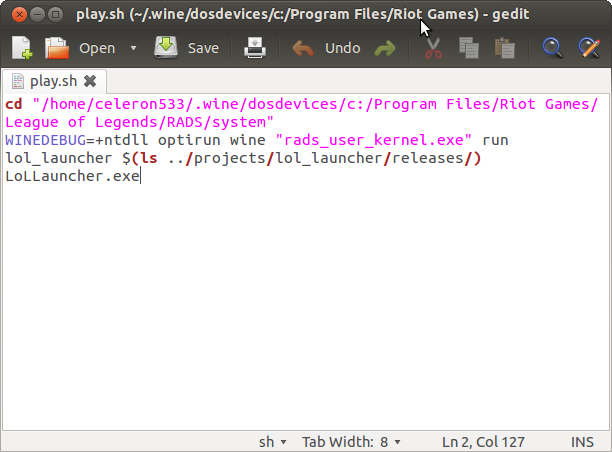
If everything is okay, you could also write a script to do that
(Please ignore "optirun" section in the command because I have special video driver)


Enjoy the game.


Special thanks to:

http://na.leagueoflegends.com/board/showthread.php?t=1946188


Friday, 15 February 2013

HOWTO: install Oracle 10g on Windows 7 x64

There WAS a possible solution on this issue: Run the Installation Guide in Compatibility Mode. However, it only works on Windows 7 x86. On x64 OS, JVM would freeze or crash,interrupt the installation.


This post will present a satisfied solution on this issue.

Go to Oracle website and download the database (10g is no longer available on this page now, but could be downloaded from Oracle ftp)
http://www.oracle.com/technetwork/database/enterprise-edition/downloads/index.html

Oracle Database 10g Release 2 (10.2.0.4) for Microsoft Windows Vista x64, Microsoft Windows Server 2008 R2 x64, Windows 7 x64

Unfortunately, you still could not launch Oracle Universal Installer due to mismatch OS version.
Checking installer requirements...
Checking operating system, must be 5.0, 5.1, 5.2 or 6.0 Actual 6.1
Failure. 

"What?! It supports Win7 x64 in the description."

I believe this is a stupid mistake from Oracle, Windows Vista is version 6.0 and Windows 7 is 6.1.

We could get over this problem by set the installer "ignore checking requirements", just add a startup parameter after installer.exe
-ignoreSysPrereqs


NOTE: you need to tick on "check operating system requirements" manually!
Otherwise, you will not to next step.


Play non-English version WarCraft on an English Windows7

Windows 7 x64 English

One of my friends called me that he has trouble in playing the WarCraft on his system. He bought the laptop in Australia, pre-installed the Windows 7 English language version. However, when he wanted to launch the game, something went wrong:

"WC3 required specific version of Windows"

The source of this issue is that Blizzard implemented a system locale check. If the game locale and the system locale are not equal, WarCraft will load extra language pack.

Luckily, some experts (or hackers?) on the network provided an possible solution: modify the game DLL(Dynamic Link Library).

That "Game.dll" file is normally located in the root folder of the game, you can easily figure it out.

Then, use some Hex editor to edit the file. You could use WinHex, UltraEdit, or
Notepad++ with Hex plugin.

Just copy "HexEditor.dll" to //notepad++//plugins folder ,it will take effect.


Launch notepad++, and open Game.dll (Remember BACKUP the original file!)
then
click the menu bar: plugin -> HEX Editor -> View in HEX


Search string:
3D04080000742A3D04


Modify the 74 to EB, then save the file.


ALL DONE! Enjoy the game.


======================= Other issues ==================================

"I am using gForce 310M, but the game does not run as smooth as it does in the Windows XP"

WC3 runs on DirectX 8.1 while Windows only capacity with DX9 and DX10. Convert operations slow the fps and heavy the CPU's workload.
It is better to switch the game 3D render engine into OpenGL mode to optimize the performance.
Create a new shortcut of the game and add some startup parameter after it:
" -opengl"
Please note that there is an initial space.
Now it should looks like:
"D:\WarCraftIII\" -opengl
Sometimes, activate the shadow effects (under OpenGL) will crash the game.


--------------

"I have a FullHD screen, but the game only supports 1024x768 resolution"

Run "regedit"
Expand the brunch
HKEY_CURRENT_USER\Software\Blizzard Entertainment\Warcraft III\Video

modify the value:
resheight 640 
reswidth 480
to your resolution.